The Dashboard serves as the main hub for NDA Portal users, offering a centralised view of order stats, online sales performance, and the latest industry news. It’s designed for quick navigation, with menu options that adjust based on your user role.
This dashboard provides a centralised view of order statistics, online sales performance, and industry news for NDA Portal users. The layout is organised for quick access to key operational metrics and updates.
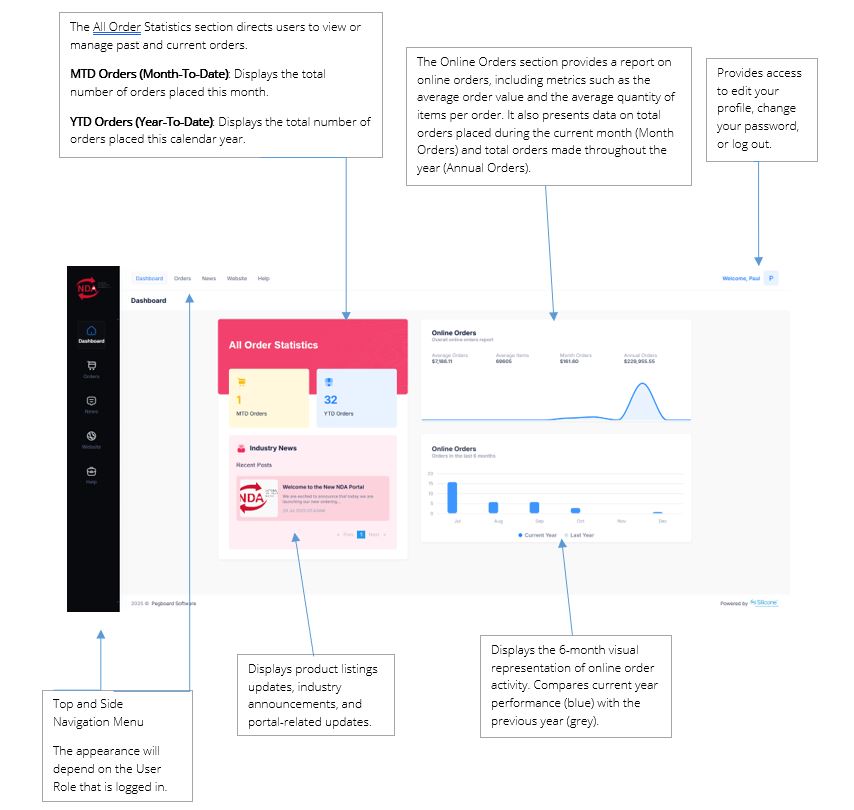
Navigation Menu Appearance
For Customer Admin, Customer, and NDA User
These users will see the standard menu options:
Dashboard: Your main overview page.
Orders: View and manage both current and past orders.
News: Read industry announcements and portal-related updates.
Website: Opens the main NDA website.
Help: Redirects to the Pegboard Support Site.
For Customer Admin
Customer Admins have access to all standard options, plus:
Security: Manage users within the Customer Admin group.
For NDA Admin
NDA Admins have the most comprehensive access. In addition to all the options above, they can also access:
Customers: View and manage every customer account under NDA.
Products: View and manage the full product catalogue.
Customer Group Admin - Dashboard Viewing
When a Customer Group Admin logs in, the dashboard will automatically display information for their own group. If they need to switch and view the dashboard of another Customer site within the same group, they can do so easily:
- Click Change Site.
- Select the Customer site you want to view. A list of customer sites will appear, showing each customer’s name, code, and whether contract pricing is available.
- Click the grey dot next to the customer name, then click Select.
Note: Customer Group Admins can only view sites that belong to the same group code.
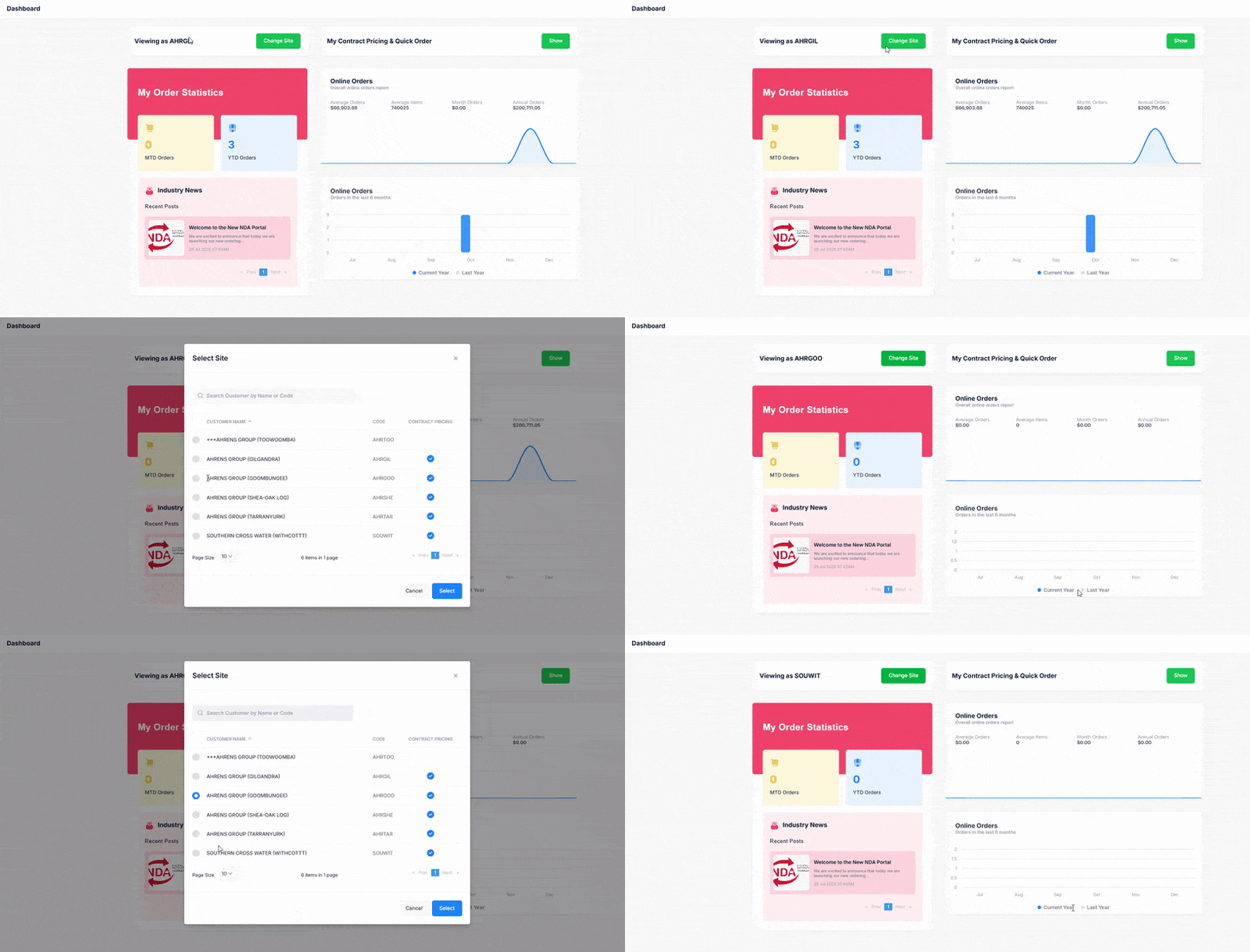
Viewing a Different Site’s Dashboard and Creating an Order
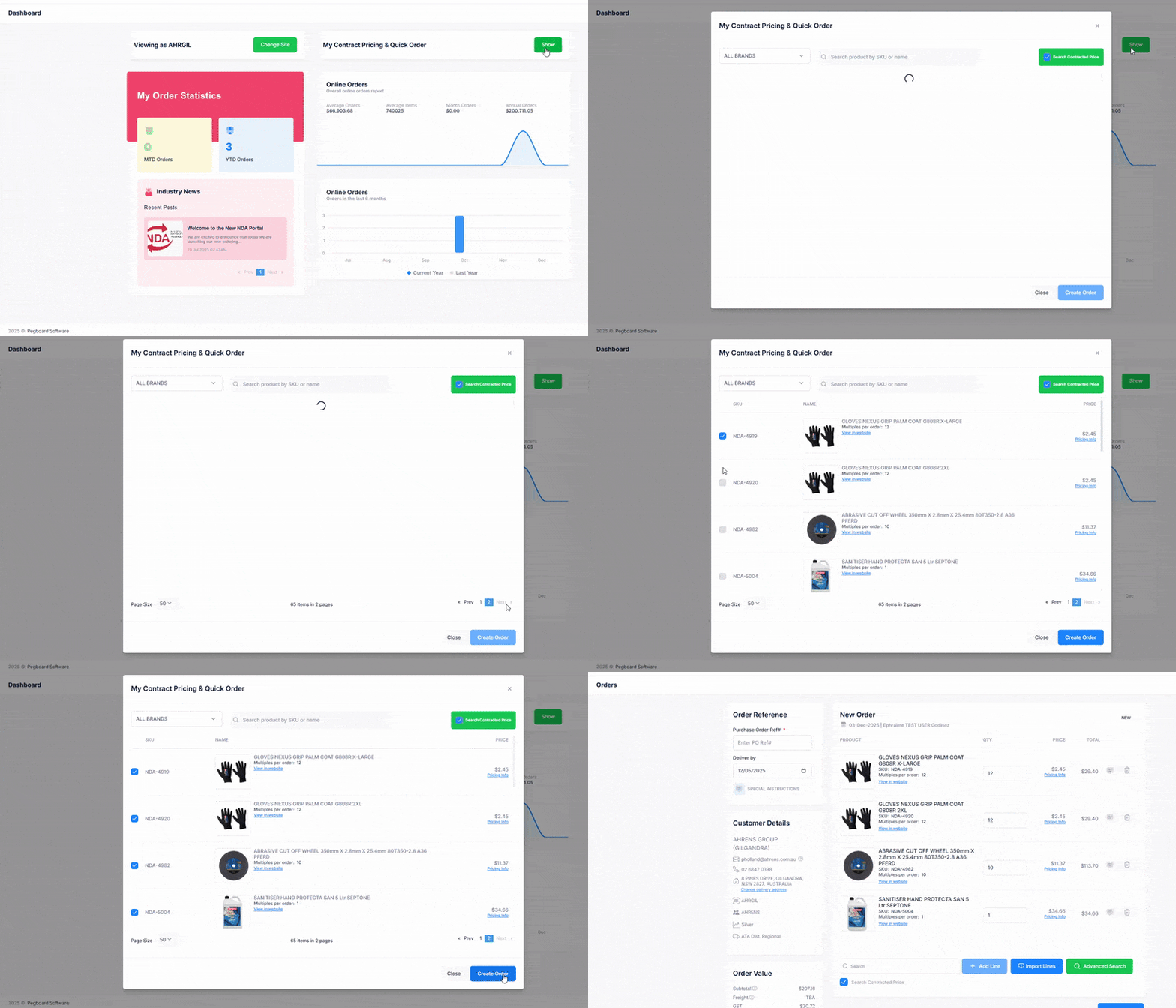
After switching to another site, the Group Admin can:
- View the order statistics for the selected Group.
- Create an order by clicking Show under My Contract Pricing & Quick Order.
- Select the products needed and click Create Order.
- A new order will then be created under the selected Customer.
Was this article helpful?
That’s Great!
Thank you for your feedback
Sorry! We couldn't be helpful
Thank you for your feedback
Feedback sent
We appreciate your effort and will try to fix the article